
Last updated: October 13, 2026
TL;DR Palantir Workshop is Foundry’s main tool for building operational apps on top of the Ontology. You wire widgets to variables, use events to make the app respond, and use Actions to write decisions back to objects. Palantir recommends it for low to moderate complexity apps. Reach for Slate, OSDK React apps, or custom widgets only when Workshop runs out of room. Our operational applications team builds these every week.
Palantir Workshop is Foundry’s low-code builder for operational apps. It reads Ontology objects, shows them in widgets connected by variables, reacts to users through events, and writes decisions back through Actions.
Most Foundry projects are judged on one screen. Not the pipelines, not the Ontology diagram. The screen a planner, dispatcher, or nurse manager opens at 7 a.m. and either uses or ignores.
In Foundry, that screen is usually a Workshop module. Palantir’s Workshop documentation describes it as a way for builders to create interactive, high-quality applications for operational users, with the Ontology as the main building block. That last part matters more than it sounds. Workshop doesn’t build dashboards on tables. It builds apps on objects that already know their links, their properties, and the actions people are allowed to take on them.
This guide covers the four building blocks (widgets, variables, events, layouts), how writeback works, a first build step by step, where AIP fits, and an honest look at when Workshop is the wrong tool. It’s written for Foundry builders and the leads who have to decide what gets built where. If you’re new to objects and links, start with our Palantir Ontology explainer and come back.
What Is Palantir Workshop?
Workshop is Foundry’s object-oriented application builder. Builders drag widgets onto a canvas, bind them to Ontology data through variables, and add buttons that run Actions. No code is needed to start, and the result runs as an app operational users work in daily.
Palantir’s app building overview calls Workshop the fastest way to turn objects, links, and actions into an interactive workflow, and says no technical expertise is required to start building with widgets. Fair claim. A data analyst can ship a working module in an afternoon.
What does a Workshop app actually look like? Palantir names two classic patterns. An inbox for alert and task management, where users work through a queue and resolve items one by one. And a common operational picture, the shared map-and-status view a control room stares at all shift. Most of what we build lands in one of those two shapes.
Workshop pulls from four Ontology pieces.
| Ontology piece | What Workshop does with it | Example |
|---|---|---|
| Objects and links | Reads and displays them | A table of open Shipment objects with their linked Supplier |
| Actions | Writes user decisions back | A Resolve Alert button that updates status and logs who did it |
| Functions | Runs logic on demand | Scoring which delayed orders hit a customer SLA first |
| Derived properties | Computes values at runtime | Days overdue, calculated when the screen loads |
How Do Widgets, Variables, Events, and Layouts Fit Together?
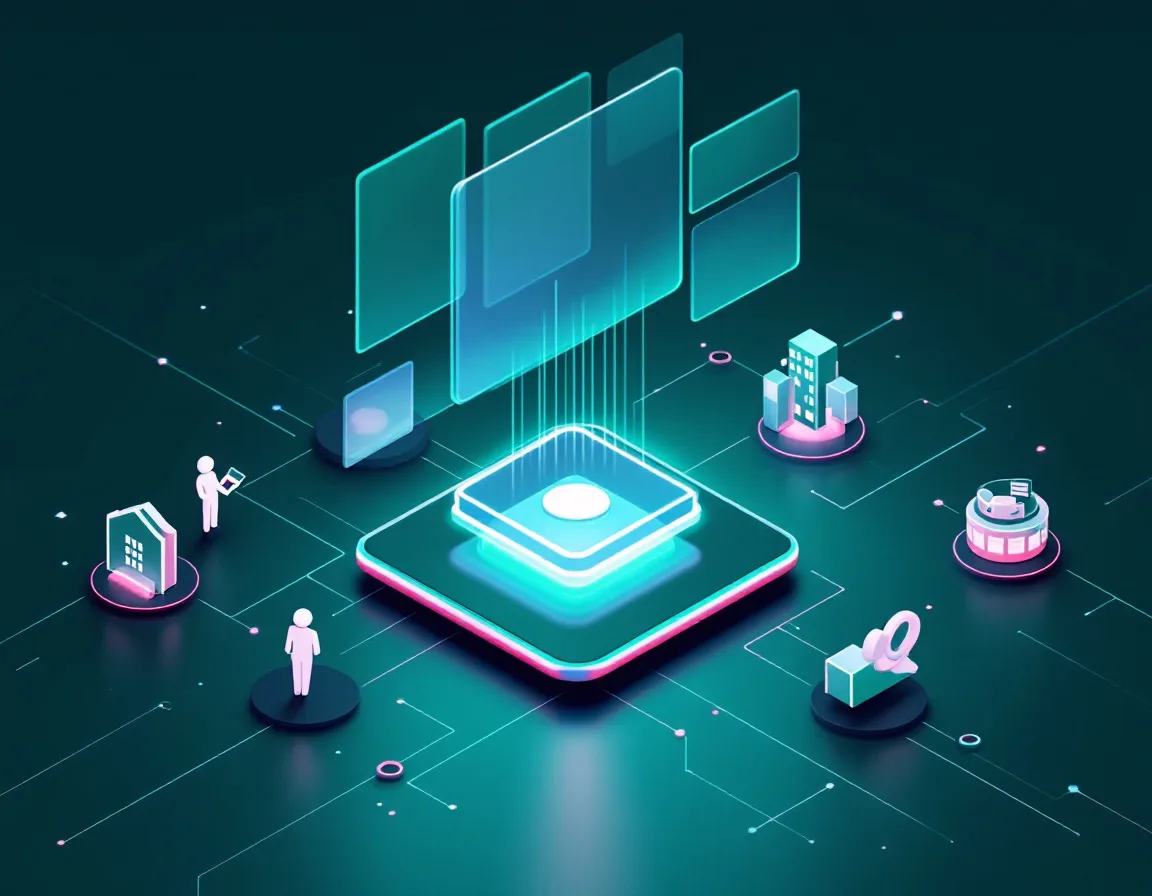
Widgets show data, variables carry data between widgets, events make things happen when users click, and layouts arrange everything into pages, sections, and pop-out panels. Learn variables properly and the other three get easy.
Here’s each one in plain terms.
Widgets are the visible pieces. Palantir’s widget docs group them into core display, visualization, filtering, event-triggering and navigation, and embedded Foundry apps. Object Table, Filter List, Chart, Map, Button Group. Each widget takes input variables and can produce output variables, such as the objects a user just selected in a table.
Variables are the wiring. The variables documentation says they configure how data moves through a module, and names have to be unique within the module. Types run from simple strings and dates to object sets, object set filters, geo shapes, structs, and time series sets. A value can come from a static setting, a function, an aggregation, an object property, a variable transformation, or an Ontology SQL query.
Events are the reflexes. Per the events docs, they trigger behavior when a user does something. Open a drawer. Switch a page. Reset a filter. Open the same object in Quiver or Vertex. There’s even an event that streams an LLM response into a variable, which we’ll come back to.
And layouts hold it all. The layouts page covers pages for multi-screen apps, sections that subdivide the screen as columns, rows, tabs, flow, toolbar, or loop, and overlays that only appear when needed. Drawers slide out from the side. Modals pop up in the middle.
Simple model. The hard part is discipline.
Variables are where Workshop apps rot. A thread on the Palantir Community about customer-facing Workshop apps has a builder admitting they were at 800 variables and glad they course-corrected around variable 100. We see the same thing on inherited modules. Nobody planned the naming, three variables hold slightly different versions of the same filter, and every change breaks something two pages away.
Our fix is boring and it works. Prefix variables by page or purpose, keep one object set variable per real concept, and delete anything with zero consumers before every release.
How Do Actions Write Data Back From Workshop?
Through Action types defined in the Ontology. Workshop exposes them as Button Groups or inline edits, auto-generates the form from the Action definition, fills parameters from variables, and only submits once every parameter passes validation.
This is the part that separates Workshop from a BI tool. A dashboard shows a late shipment. A Workshop app lets the planner reassign the carrier, records who did it and when, and updates the object every other app reads.
According to Palantir’s guide to using Actions in Workshop, you can show an Action through a Button Group, an Inline Action, or a Media Uploader. The form builds itself from the Action definition. Each parameter can default to a Workshop variable and be set as editable, read-only, or hidden, which is how you stop users from typing an object ID by hand. After a successful submit, an event can refresh data, move to another page, or update variables.
A practical pattern we use constantly. The user selects a row in an Object Table, that selection feeds a hidden Action parameter, and the user only sees the two fields they actually need to decide. Two clicks instead of six. Adoption follows.
One caution, though. Who’s allowed to run an Action lives on the Action type, not in Workshop. A button that renders fine for an admin can fail for a planner. Test every Action as the least privileged role that’ll use it, before go-live, not after.
How Do You Build Your First Workshop App?
Start from an object type with clean data and one decision users make every day. Then add an Object Table, a Filter List bound to an object set filter variable, a detail panel, and a Button Group backed by an Action.
Palantir’s own getting started tutorial builds a flight alert inbox. Here’s the same shape, in the order we’d build it for a real team.
- Pick the object type and the one decision. Open alerts and resolve or escalate, for example.
- Create the module in the project the users already have access to, since a module inherits the permissions of the project or folder it’s created in.
- Add an Object Table showing the object set, with only the columns a user scans in the first five seconds.
- Add a Filter List, backed by a new object set filter variable, and point the table at the filtered set.
- Add a collapsible detail panel that shows the selected object and its linked objects.
- Add a Button Group running the Action, with the selected object passed in as a hidden parameter.
- Add a header, test as a real user role, and put it in front of three actual users before polishing anything.
Step 4 has a gotcha the tutorial calls out. The Filter List needs its own new object set variable, separate from the one the table uses, or you create a circular dependency. Everyone hits this once.
Step 7 is the one teams skip. Don’t. A module that looks finished to the builder is usually two columns too wide and one click too deep for the person using it at a loading dock.

Workshop vs Slate vs OSDK React Apps, Which Should You Use?
Workshop for most operational apps. Slate when you need heavy visual customization with HTML, CSS, and JavaScript. OSDK React apps or custom widgets when users need an experience Foundry’s built-in tools can’t deliver.
Palantir’s application reference is unusually direct here. It says Workshop is a better fit for low to moderate complexity apps and generally has a lower long-term maintenance cost, while Slate may fit better when heavy customization is needed.
| Option | Best for | Who builds it | Long-term cost | Watch out for |
|---|---|---|---|---|
| Workshop | Inboxes, operational pictures, review and approval flows | Analysts and app builders | Lowest | Variable sprawl, layout limits on unusual designs |
| Slate | Custom landing pages, highly designed dashboards | Builders comfortable with HTML, CSS, and JavaScript | Higher | Custom code someone has to maintain |
| Custom widgets | One special component inside a Workshop app | Front-end developers | Medium | Only supported in Workshop |
| OSDK React app | Customer-facing or fully custom experiences | Software engineers | Highest | You own a real codebase, tests, and releases |
| Pilot (beta) | Prototyping React front ends from a prompt | Builders with an admin who enabled it | Unclear yet | Beta, not on every enrollment |
Custom widgets are the underrated middle path. They let a developer add custom front-end code as a single widget while the rest of the app stays plain Workshop. Need one unusual Gantt view? Build that piece. Don’t rebuild the whole app in React for it.
Pilot is the new arrival. It’s an AI app builder that generates React front ends from natural language prompts, and it can publish either standalone apps or custom widgets that drop into Workshop. It’s in beta, and an admin has to switch it on.
Is Workshop dead, then? Somebody on the Palantir Community asked almost exactly that in a 2026 thread titled Apologies to workshop, after building with Pilot. Other builders pushed back that Workshop’s capabilities and consistency still outclass Pilot in places. We’re with the second camp, for now. Generated React code is still code. Somebody has to own it, review it, and keep it working when the Ontology changes. Workshop modules mostly don’t carry that burden.
Our rule of thumb. If the users are internal and the job is see, decide, act, start in Workshop. If the users are customers, or the design brief came from a brand team, budget for React.
Can You Add AI Agents to a Workshop App?
Yes. The AIP Chatbot widget, formerly called the AIP Agent widget, embeds a chatbot built in AIP Chatbot Studio. It can read and write Workshop variables, so the agent sees what the user selected and can hand results back to the app.
The AIP Chatbot widget docs explain that application variables map to Workshop variables according to the read and write permissions set in Chatbot Studio. In practice, a user selects five delayed orders in a table and asks the agent which customers to call first. The agent already knows which five orders. No copy-paste.
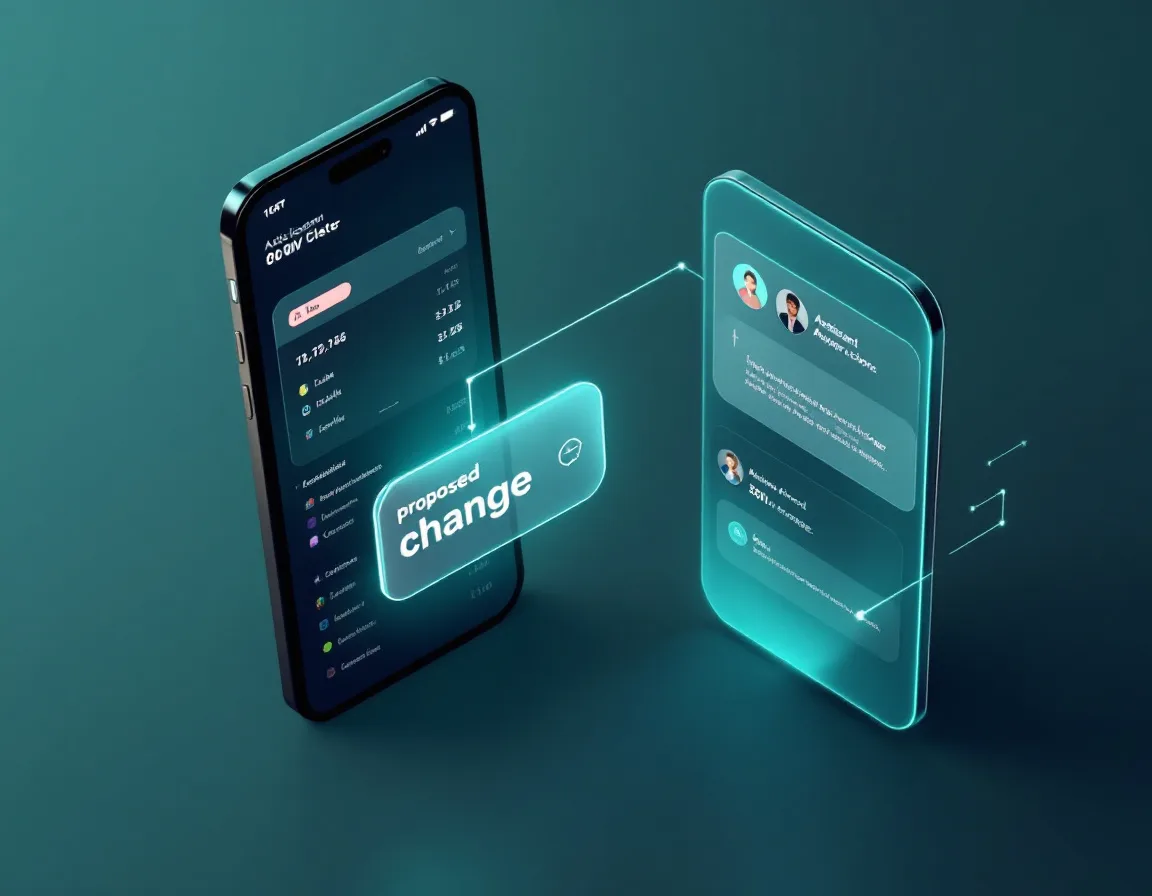
Two details worth knowing. The widget can run against an Ontology scenario, so an agent’s suggested edits stay sandboxed until someone approves them. And the older chatbot configured directly inside Workshop is deprecated, so new builds should use Chatbot Studio.
Smaller AI touches count too. The Stream LLM response into variable event can fill a text box with a drafted summary, and the Send prompt to AIP Assist event can open help in context. Sometimes that’s all the AI an app needs.
Bias disclosed, since we build agents for a living. Most operational apps don’t need a chat window. A pre-drafted recommendation sitting next to the Approve button usually beats a blank prompt box. Our guide to building AIP agents with evals covers how to test what the agent says before users see it.
What Breaks in Real Workshop Projects?
Variable sprawl, slow embedded analyses, permissions that differ between builders and users, unclear audit trails, and modules built for the builder instead of the operator. Almost none of it is a product limit.
Here’s what we run into most on inherited builds.
- Variable sprawl, covered above. It’s always first.
- Slow embeds. The same Community thread complains that embedded Quiver analyses are slow, and we’ve seen a single heavy embed turn a fast inbox into a 6-second wait on every page switch.
- Permission surprises. Modules inherit project permissions, and Actions have their own rules. Builders test as admins. Users aren’t admins.
- Audit questions. When compliance asks who changed what, the answer should come from Action logs on the objects, not from guessing. Design Actions with that question in mind.
- Mobile assumptions. Workshop mobile is a limited access feature, and Object Table, Chart, and Map are disabled there. Field teams on phones need a different design, not a squeezed desktop one.
- Building for the screenshot. Twelve charts look great in a steering committee deck. Operators wanted one queue and one button.
That last one deserves more space than it gets here. The best Workshop app we’ve shipped had three widgets on the main page. It replaced a spreadsheet emailed around every morning. Nobody missed the spreadsheet.

Who Should Use Workshop, and Who Shouldn’t?
Workshop fits teams whose users work inside Foundry, act on Ontology objects, and need consistent apps they can trust. It’s a weaker fit for public or customer-facing portals, pixel-perfect branded designs, and apps that barely touch the Ontology.
Good fit.
- Operations, supply chain, maintenance, and regulatory teams working from queues
- Control rooms that need a shared operational picture
- Any team replacing a spreadsheet passed around by email
- Builders who know the business better than they know React
Poor fit.
- External customer portals with strict brand standards, which usually need OSDK React
- Apps where nearly all the logic lives outside Foundry
- Teams expecting Workshop to fix a messy Ontology. It won’t. It’ll show the mess faster
That last bullet is the real one. Workshop is only as good as the objects underneath it, and those are only as good as the pipelines that feed them. If the Shipment object has three duplicate records per order, the slickest inbox in the world will show all three.
Build the Smallest App That Changes a Decision
Three things to take away. Learn variables first, because they decide whether a module is maintainable in a year. Put Actions at the center, because writeback is what makes Workshop more than a dashboard. And default to Workshop, moving to custom widgets, Slate, or React only when a real requirement forces it.
PAL4C Labs is an independent, Palantir-exclusive consultancy. We build Ontologies, pipelines, Workshop apps, and AIP agents for operations, supply chain, healthcare, and regulatory teams, and we’re not affiliated with Palantir. For one global logistics operator, that work ran 5 months from kickoff to deployment and cut procurement delays by 34%, per our case studies.
Have a spreadsheet, inbox, or status meeting you want to retire? Send us the decision it supports and who makes it. We’ll sketch the Workshop module with you, including the objects, the Actions, and the three widgets that matter on day one.
Questions Workshop Builders Ask Us
So What Exactly Is Palantir Workshop?
Foundry’s low-code app builder for operational users. It shows Ontology objects in widgets, connects them with variables, responds to users with events, and writes decisions back through Actions.
Workshop vs Slate, Does the Choice Actually Matter?
It matters for maintenance more than features. Palantir’s own guidance says Workshop suits low to moderate complexity apps and usually costs less to maintain over time, while Slate fits apps that need heavy customization with HTML, CSS, and JavaScript. If your team doesn’t have someone who enjoys front-end code, that alone tends to settle it. We default to Workshop and treat Slate as the exception that has to justify itself.
Do You Need to Code to Build in Workshop?
No. Analysts build full modules with widgets, variables, and events. Code comes in through Functions for complex logic, custom widgets for special components, or OSDK React apps for fully custom experiences.
When Should We Build an OSDK React App Instead?
When users are outside your organization, when the design must match a brand system exactly, or when the experience simply doesn’t fit widgets and layouts. Expect to own a real codebase, with tests and releases, for as long as the app lives.
Can a Workshop App Include an AI Agent?
Through the AIP Chatbot widget, formerly the AIP Agent widget. It embeds a chatbot built in AIP Chatbot Studio that can read the user’s selections from Workshop variables and pass results back, and it can work inside an Ontology scenario so proposed changes stay sandboxed.
Does Workshop Work on Phones?
Partly. Workshop mobile is a limited access feature that may not be on your enrollment, and it disables Object Table, Chart, and Map. Design field apps for mobile from the start rather than shrinking a desktop module.
How Many Variables Is Too Many?
No hard limit. Past about 100 in one module, though, maintenance gets painful unless you’ve used strict naming and removed unused variables as you go.